Scripting
This page explains how to trigger voicelines when in-game events occur, interacting with the commentary system in Blueprints. If you are a programmer and would like to instead script using C++ code, you should also read the Using C++ addendum.
Visual example
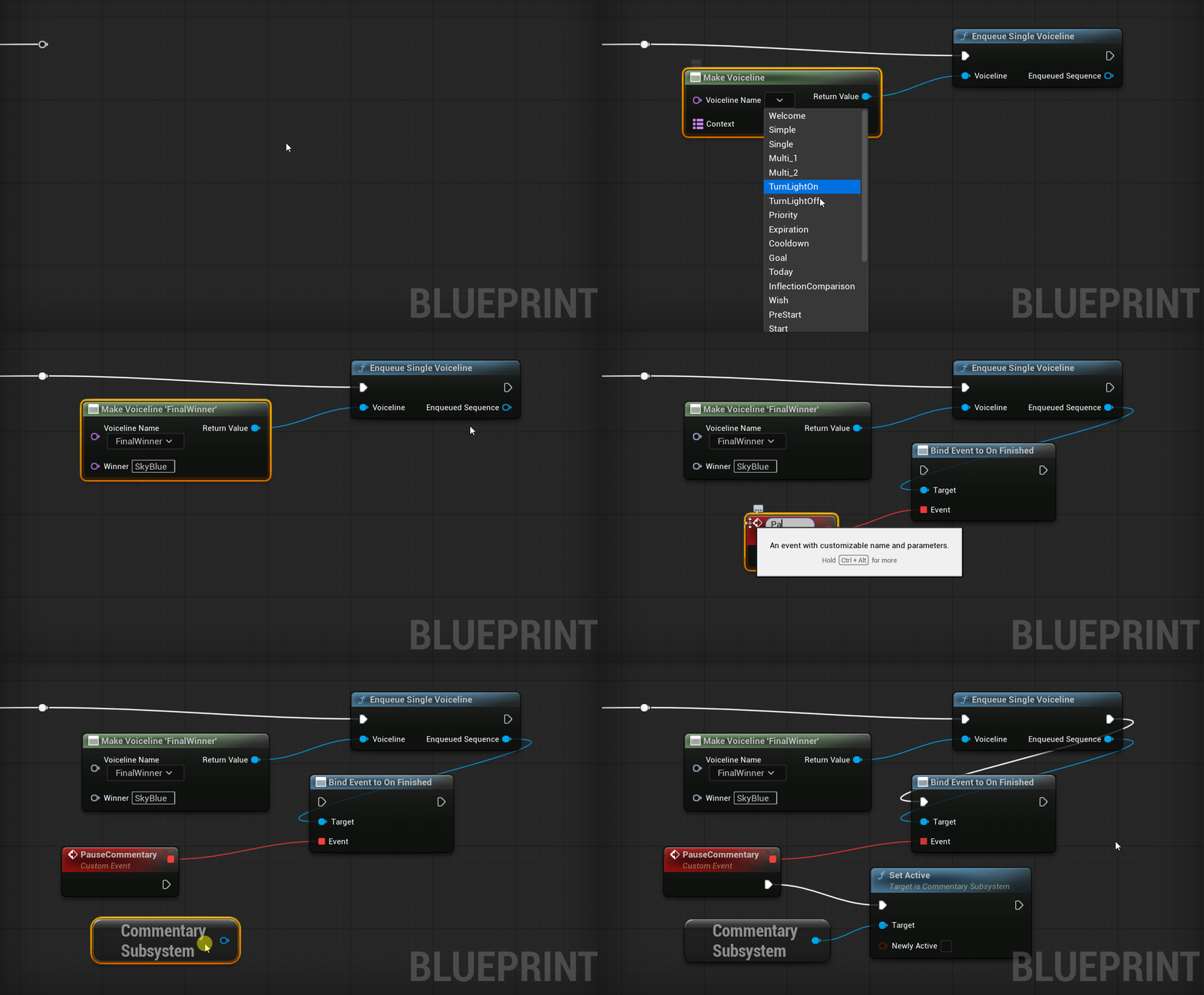
Below is an example of how to place a single voiceline into the priority queue. The selected voiceline requires the context of who won, which is provided as a name. Finally, the GIF shows how to pause the commentary once the voiceline finishes playing.
Choosing a voiceline
To specify what voiceline to work with, use the friendly Make Voiceline node. It provides a drop-down list with voicelines from your data table (if you do not see them, make sure you have your table properly selected). If for any reason the shown list is outdated, you can manually refresh it with right click → Refresh Nodes.
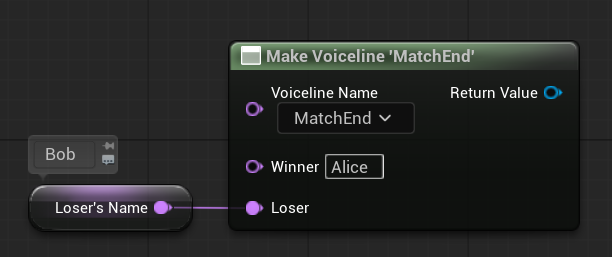
Once you select the voiceline’s name, extra pins may pop-up asking for context to use as interchangeable content. Fill out the names of interchangeables (row names from the data table) that you want to use, either directly or by connecting a variable.
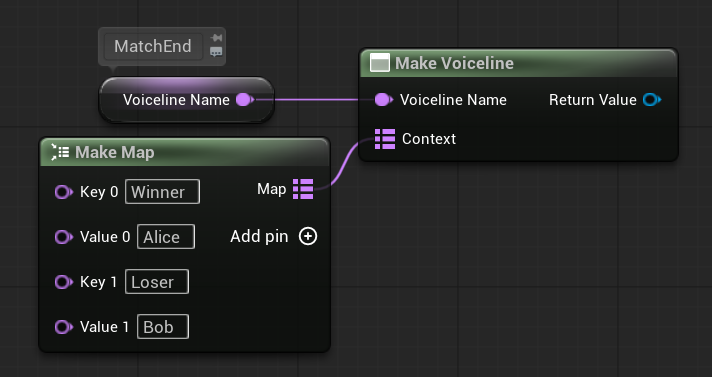
Using a non-predetermined voiceline name is also possible, but in that case you must provide appropriate context via a map:
Using enumerator display names
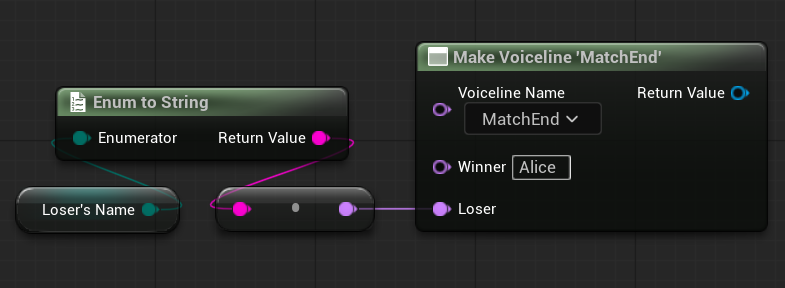
If you want to use an enumerator’s display name as context, do not convert the enumeration to a Name directly! It must first be converted to a String (otherwise, an internal name is used).
Enqueueing a sequence
When an in-game event occurs which deserves commentary, you can place a voiceline sequence into consideration by enqueueing it into the priority queue. This can be done from any Actor or other world-aware object.
For ease of use, there are two convenient Blueprint functions available:
- Enqueue Single Voiceline: creates a SingleVoicelineSequence and puts it into the queue
- Enqueue Multiple Voicelines: creates a MultiVoicelineSequence and puts it into the queue
If you want to enqueue a Custom Sequence instead, follow these steps:
- create the sequence with Construct Object from Class
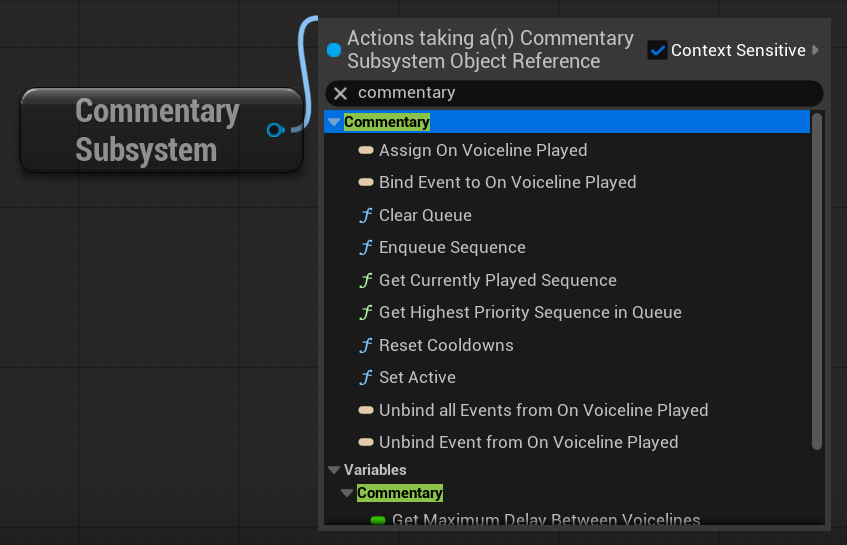
- access the Commentary Subsystem (search for the Get CommentarySubsystem node)
- call the subsystem’s Enqueue Sequence and use your newly-created sequence as input
Example in Blueprint
An example of enqueueing different sequences can be viewed on BlueprintUE.com.
Extending behaviour
Outside of playing sound and showing subtitles, you may want certain voicelines to engage with other systems. For example, you could have the crowd cheer alongside commentators, or have the camera take a certain angle.
To add custom logic to a particular sequence being played, you can bind an event to the sequence’s OnStarted and/or OnFinished.
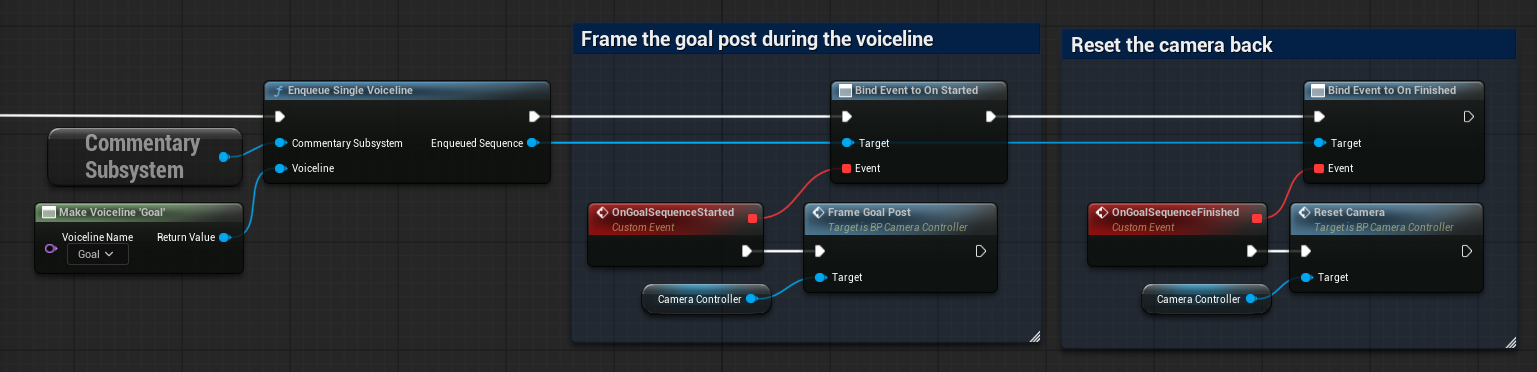
For any more complicated logic, consider creating a Custom Sequence instead. Apart from executing code throughout, it also allows you to play voicelines based on the most recent game state.
Controlling the commentary
There are a few more functions of the Commentary Subsystem that you can use to alter the commentary at runtime:
- Set Active (Boolean): select whether new voiceline sequences should be played – useful for temporarily pausing the commentary
- Clear Queue: empties the priority queue – useful for transitions between different phases of the game
- Reset Cooldowns: forgets about previously played sequences
Furthermore, you can tweak the duration between played voicelines. Defaults are set in Project Settings but the variables may also be updated throughout the game:
- MinimumDelayBetweenVoicelines (Float) – the lower bound of the random delay
- MaximumDelayBetweenVoicelines (Float) – the upper bound of the random delay (should be equal or greater)