Adding Content
On this page, you will learn how to add content to your commentary system.
Adding a Voiceline
Open up the Voicelines Data Table you created in Setup and add a new row. This row will represent a specific in-game event. Make sure to give it a descriptive name, so that you can easily find it later when Scripting!
We will get back to the three number fields (priority, expiration, and cooldown) later. First, let’s focus on the voiceline’s content.
Voicelines may have multiple variants. As a rule of thumb: the more often a voiceline will be used, the more variants it should have to avoid sounding repetitive. The plugin supports anywhere from 1 to 32 variants per voiceline1.
Simple variants
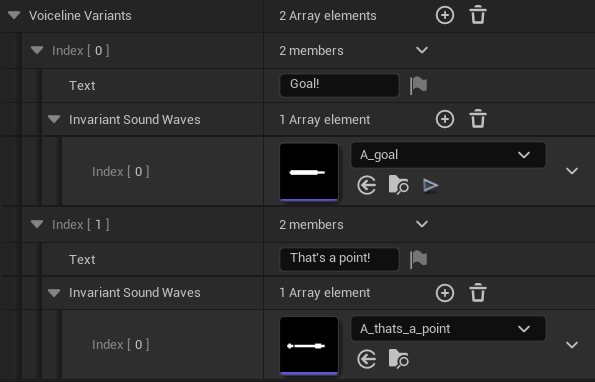
To create a new variant, add an element to the Voiceline Variants property. For a variant whose content is always the same, simply type in its text for subtitles and add a single Sound Wave to the Invariant Sound Waves array.
Here is what two variants could look like for a basic “goal” event:
Including interchangeable content
If you want your variant to be based on the context of the in-game event, you will need to include an interchangeable.
For each interchangeable the variant needs, think of an appropriate variable name. For instance, if you want to announce the result of a two-person match (which did not end in a tie), you could have two variables called “Winner” and “Loser” to be later filled in with the correct competitor names.
To introduce a variable, simply place it in the voiceline variant’s text surrounded by curly braces, like this:
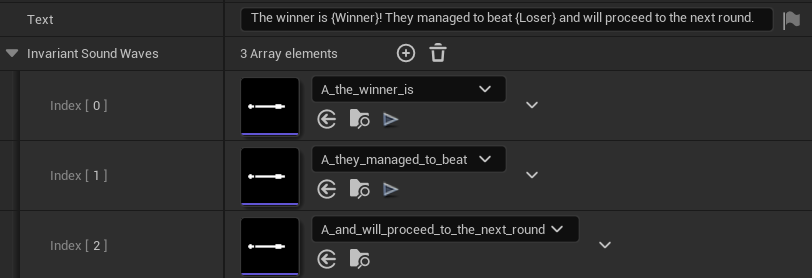
The winner is {Winner}! They managed to beat {Loser} and will proceed to the next round.
Note that you may use the same variable multiple times in a single variant, or even across variants of the same voiceline. When scripting to play a particular voiceline, you will need to provide values for all variables from its variants, so try to stay consistent and descriptive in the naming.
Once you have the text, it is time to add audio. Consider the invariant parts of the voiceline. In the example above, there are three:
- “The winner is…”
- “They managed to beat…”
- “…and will proceed to the next round.”
This means you need to add three sound waves. Be careful about the count and order.
Let’s consider one more example:
{Winner} has won over {Loser}!
In this case, there is only one audible invariant part: “…has won over…”. Therefore, you would add a single sound wave. While there is also an exclamation point after the Loser interchangeable, that part is disregarded, as it is not a letter of the alphabet.
Specifying inflections
There is a slight problem with our previous examples. As the two interchangeables are placed in different parts of a sentence, they need to be pronounced with different inflections. Right now, they will both use the default inflection. We can easily fix that by specifying which inflections to use.
To do so, follow the variable name with a colon and the name of the inflection, like so:
The winner is {Winner:downwards}. They managed to beat {Loser:neutral} and will proceed to the next round.
The inflection names correspond to columns in your Interchangeables Data Table. When using the default inflection (“neutral”), specifying the inflection is optional.
Defining the priority, expiration, and cooldown
Now that we have defined our variants, let’s return to the three number fields of the voiceline. All of them are optional but inform the selection of voiceline sequences once in the priority queue.
First, consider the voiceline’s priority (integer). How important, interesting, or unique is this event? The highest priority is always selected – if you want the selection to be random instead, the voicelines in question should share the same priority.
Second, consider the voiceline’s expiration (float, in seconds). Is the event only relevant for a limited duration? Keep this value at 0 if it should never expire, or give it an expiration to have it removed from the queue once too old.
Third, consider the voiceline’s cooldown (float, in seconds). If the same event were to occur again shortly after, should it be narrated right away? Increase the value when there is a risk of the commentator repeating themself. The sequence will then stay in the queue until enough time has passed (or until it expires).
Sequences with multiple voicelines
The values set here are used when playing the voiceline alone (as a SingleVoicelineSequence). When playing multiple voicelines back-to-back (as a MultiVoicelineSequence), the first voiceline’s values are used.
If you intend to use a set of voicelines only for a specific sequence, it is advisable to name them accordingly (such as Introduction_1, Introduction_2, …) and only specify the priority/expiration/cooldown for the first voiceline.
Note that if you create a custom sequence, it may either define its own values, or copy the ones from a voiceline in the data table.
With that, the addition of a voiceline is complete!
Adding an Interchangeable
Adding interchangeable content is much simpler. Each word or expression that you want to use in voicelines is an independent row in the Interchangeables Data Table that you created during Setup.
Add a new row and give it a precise name. You will need to match it exactly while scripting (except for case, the names are case-insensitive).
Naming interchangeables
Here are a few ideas for how to name interchangeables to make them easily accessible:
- In case of numbers and ordered data, include the digits – for example, days of the week could be Day_1, Day_2, etc. This way, you will be able to construct the name in Blueprint as “Day_” + number.
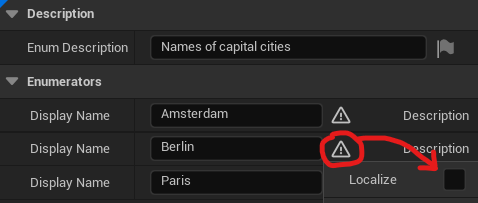
- In case of instances from a specific set, use the display names of enumerators – see example below. However, only use this for internal enumerations with localisation turned off!
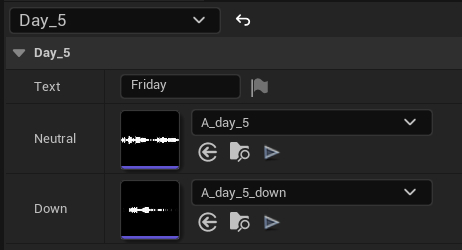
Then, type the interchangeable’s text for subtitles and select the sounds for different inflections. It is not required to supply all of them. However, keep in mind that an empty sound will be dropped – consider populating every column, even if having to re-use the same sound.
Once you are done, the interchangeable might look like something like this:
-
Using more than 32 variants is also possible. However, the selection is then purely random, meaning a variant might play twice in a row (not that it is likely). ↩